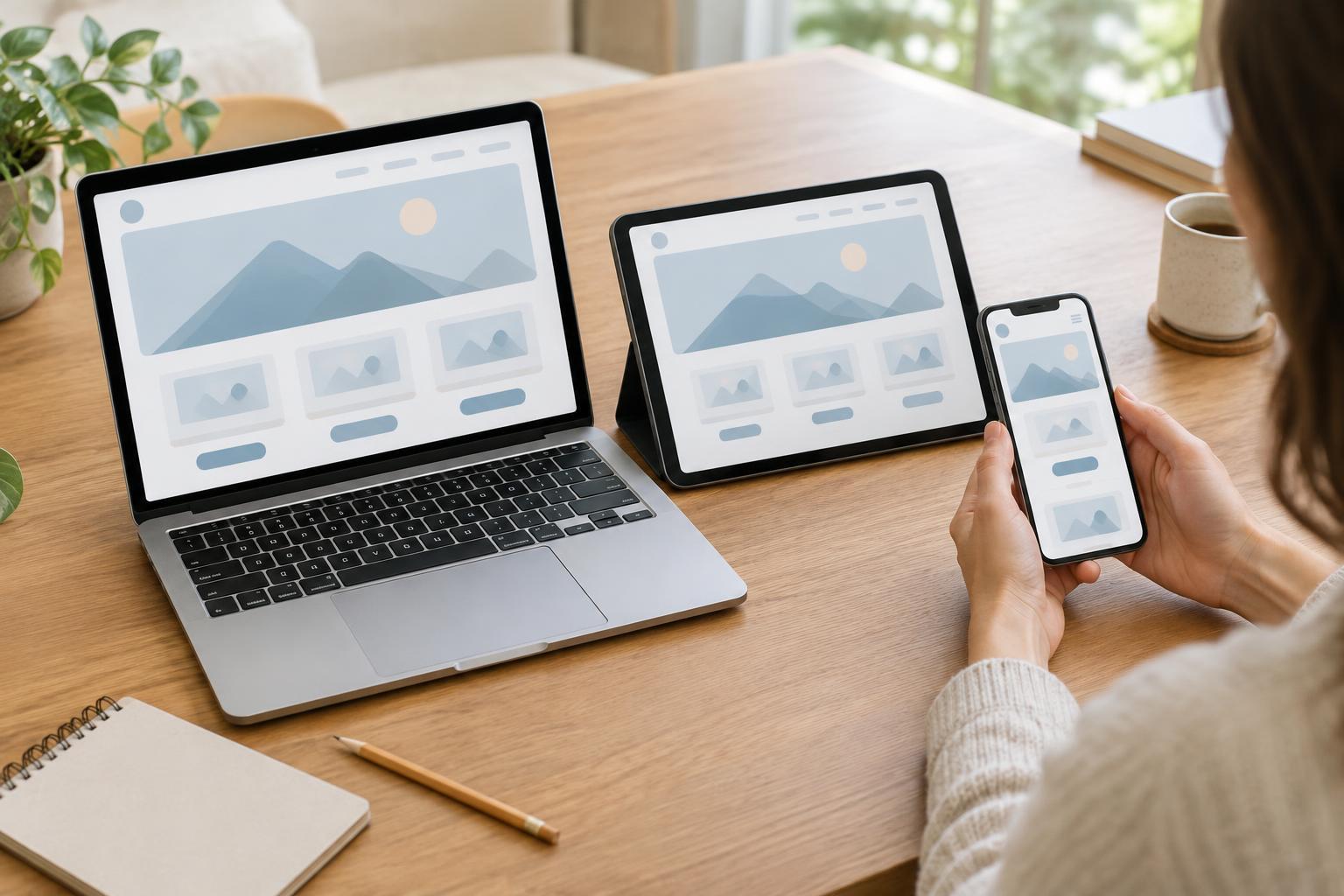
Start with the project’s real tasks
Reviewing a digital project on different screen sizes is not just a matter of shrinking a browser window. A page may fit on a phone while its most important action is hard to find, its text is uncomfortable to read, or a form is difficult to complete. Before testing, return to the project brief and identify what people need to do. For a portfolio site, that might mean viewing work and making contact. For a student project, it might mean understanding an explanation and finding supporting material. For a small team’s service page, it might mean comparing options and submitting an inquiry.
Turn those tasks into a short review list. Include the main pages or screens, important content, navigation, forms, and any menus, filters or media controls. This gives reviewers a shared purpose and keeps the session from becoming a collection of unrelated visual opinions. If the project has an intended audience or known device requirements, use those to decide which screens deserve the most attention.
Choose a useful range of screens
Begin with at least a narrow phone view, a wider handheld or tablet view, and a desktop view. Do not rely on a single preset width for each. Slowly resize the browser between them and watch for the points where text wraps awkwardly, columns become cramped, or controls collide. Those in-between widths often reveal problems that a few tidy screenshots miss.
Browser preview tools are useful for finding layout issues quickly, but try the project on physical devices when they are available. A real phone can expose small tap targets, awkward scrolling, keyboard behavior and menus that feel different from a mouse-driven preview. You do not need to own every device: choose a manageable set, record what you tested, and avoid treating an untested size as verified. If several people are reviewing, agree on the same tasks so their observations can be compared.
Check layout and content together
On each screen, scan from top to bottom. Look for clipped text, horizontal scrolling, images cropped in a way that hides their subject, and spacing that makes related items seem separate. Check whether headings still describe the sections beneath them and whether cards, tables or galleries remain understandable when they stack. A layout can be technically responsive but still demand too much scrolling before someone reaches the useful content.
Pay particular attention to content that changes position. A desktop sidebar might move below the main article on a phone; confirm that it still appears at a sensible point. If a navigation menu becomes an icon, check that its label or meaning is clear. Review both short and long examples of content when possible. A design that works with a brief project title may break when a real title wraps onto three lines.
Do not judge every difference as a defect. Responsive design often changes the arrangement of content to make it usable in the available space. The question is whether the information, priority and relationships remain clear, not whether every view looks identical.
Complete the key interactions on every view
Walk through the tasks you listed at the start rather than stopping at a visual inspection. Open and close menus, follow links, play media, use filters, and complete forms with test information. Confirm that labels remain visible, error messages are understandable, and nothing important is covered by a sticky header or an on-screen keyboard. On touch screens, notice when controls are so close together that selecting the intended one becomes difficult.
Also check basic accessibility across sizes. Try moving through interactive elements with a keyboard on desktop, and make sure focus is visible and follows a sensible order. Increase text size or zoom and see whether content remains readable without losing essential controls. Review contrast and image descriptions as part of the broader project review; a change in layout should not make an existing barrier harder to work around.
If something fails, describe the effect on the task. “The submit button sits beneath the keyboard on a narrow phone, so the form cannot be completed easily” is more actionable than “mobile form looks wrong.” Include the screen size or device used and the steps needed to reproduce the issue.
Record decisions and run a final pass
Keep findings in one shared place, such as a project board or review document. Group them by page and task, attach screenshots where they clarify the problem, and distinguish blocking issues from minor polish. Assign an owner and note whether a fix needs design, content or development work. For freelancers, this record also helps explain changes to a client; for students and small teams, it prevents the same issue from being discussed repeatedly without a decision.
After fixes are made, repeat the affected task at the size where it failed and at nearby sizes. A change that solves one narrow layout can create a new problem at a wider one. Before delivery, document the screens and interactions you checked, any known limitations, and what still needs review. This makes the handoff more useful than a simple statement that the project is “responsive”—and gives the next person a clear starting point.