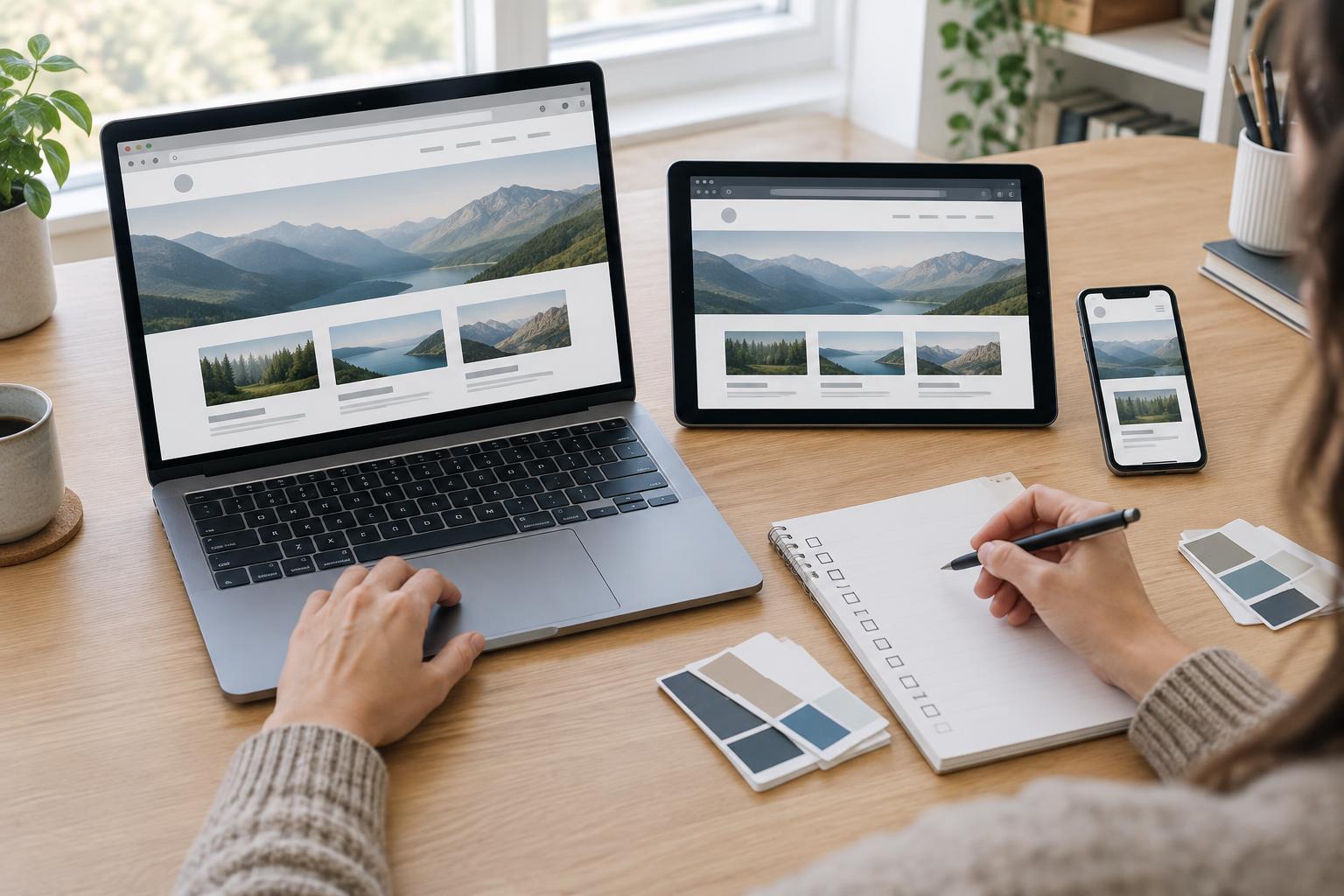
Start with a test plan, not random clicking
Cross-browser checking is the process of confirming that a website remains usable when visitors open it in different browsers, screen sizes and input modes. It does not mean every page must look pixel-for-pixel identical. The goal is to catch differences that hide content, break tasks or make the site difficult to use before the client or project team takes over.
Begin with the project brief and list the tasks a visitor needs to complete. For a portfolio, those might be viewing work and sending an inquiry. For a small shop, they might include finding a product, changing a quantity and completing checkout. Identify the pages and components involved in each task, including navigation, forms, menus, image galleries and any embedded content. This gives you a focused route through the site rather than a long, unstructured list of pages.
Choose a manageable test set that reflects the project's intended audience and available devices. Include current versions of major browser engines where practical, such as Chrome or Edge, Firefox and Safari, plus narrow and wide viewports. If the brief names a specific device or browser, add it. Record what you actually tested; do not describe a browser or device as covered simply because a responsive preview looked similar.
Check layouts and content at useful widths
Open the same representative pages in each browser and compare how they behave, not just how they look in screenshots. Check the header, navigation, main content, images, footer and any fixed or sticky elements. Look for clipped text, unexpected horizontal scrolling, overlapping controls, missing images and spacing that makes content hard to follow. Resize the window gradually around points where the layout changes; a problem may appear between common preset widths.
Read through real content rather than testing only a polished homepage. Long headings, short labels, tables, captions and translated or user-entered text can expose cramped layouts. Confirm that images fit their containers, important details remain visible and any supplied alternative text is present where needed. If an image is decorative, make sure it does not create a confusing announcement for people using assistive technology.
A visual difference is not automatically a defect. Fonts and form controls can render differently across browsers. Prioritize whether the page remains readable, recognizable and functional. If a difference matters to the design, capture a screenshot, note the browser and viewport width, and describe the expected result so the person fixing it has a clear target.
Test interactions from start to finish
Run each important task as a visitor would. Open and close menus, follow internal links, use search or filters, submit forms and verify what happens after an error and after a successful submission. Test empty and invalid form fields as well as plausible entries. Check that feedback is visible and understandable, that buttons do not become inaccessible, and that a task can be completed without guessing what to do next.
Repeat key interactions with a keyboard. Move through controls with Tab, activate them with Enter or Space as appropriate, and check that the focus indicator is visible. Confirm that menus, dialogs and other interactive elements can be opened and dismissed without trapping the user. Browser testing is not a full accessibility audit, but these checks can reveal delivery-blocking problems that mouse-only testing misses.
Pay attention to states that are easy to overlook: a slow-loading image, a failed form submission, an empty search result, a long dropdown or a link that opens a new page. Test on a real phone or tablet when one is available, because touch behavior and the on-screen keyboard may differ from a desktop browser's mobile preview.
Log, fix and retest issues consistently
Keep a short issue log in the project's shared workspace. For each problem, record the page, browser and device or viewport, steps to reproduce it, what happened, what should happen, and a screenshot if it helps. Label issues by impact: a form that cannot be submitted is more urgent than a minor spacing difference. This format lets a freelancer work efficiently and helps a student or small team divide fixes without losing context.
After a fix, repeat the failing steps in the affected browser and check nearby behavior. A change that repairs a narrow layout could alter the desktop version; a form fix might affect its error message. Mark an issue resolved only when the result has been checked. If a limitation cannot be fixed within the project scope, document its impact and agree on how it will be handled rather than silently leaving it for handover.
Make the delivery record useful
Before delivery, make one final pass through the priority tasks on the version of the site the recipient will receive. Check that links point to the intended destinations, temporary content has been removed, and the tested version matches the handover version. If the site changed after testing, revisit the affected pages.
Include a concise testing note with the handover: browsers and devices used, key tasks checked, issues fixed, and any known limitations or untested areas. This is not a promise that no visitor will ever encounter a problem. It is a clear account of what was checked, giving the next person a reliable starting point for maintenance and future improvements.