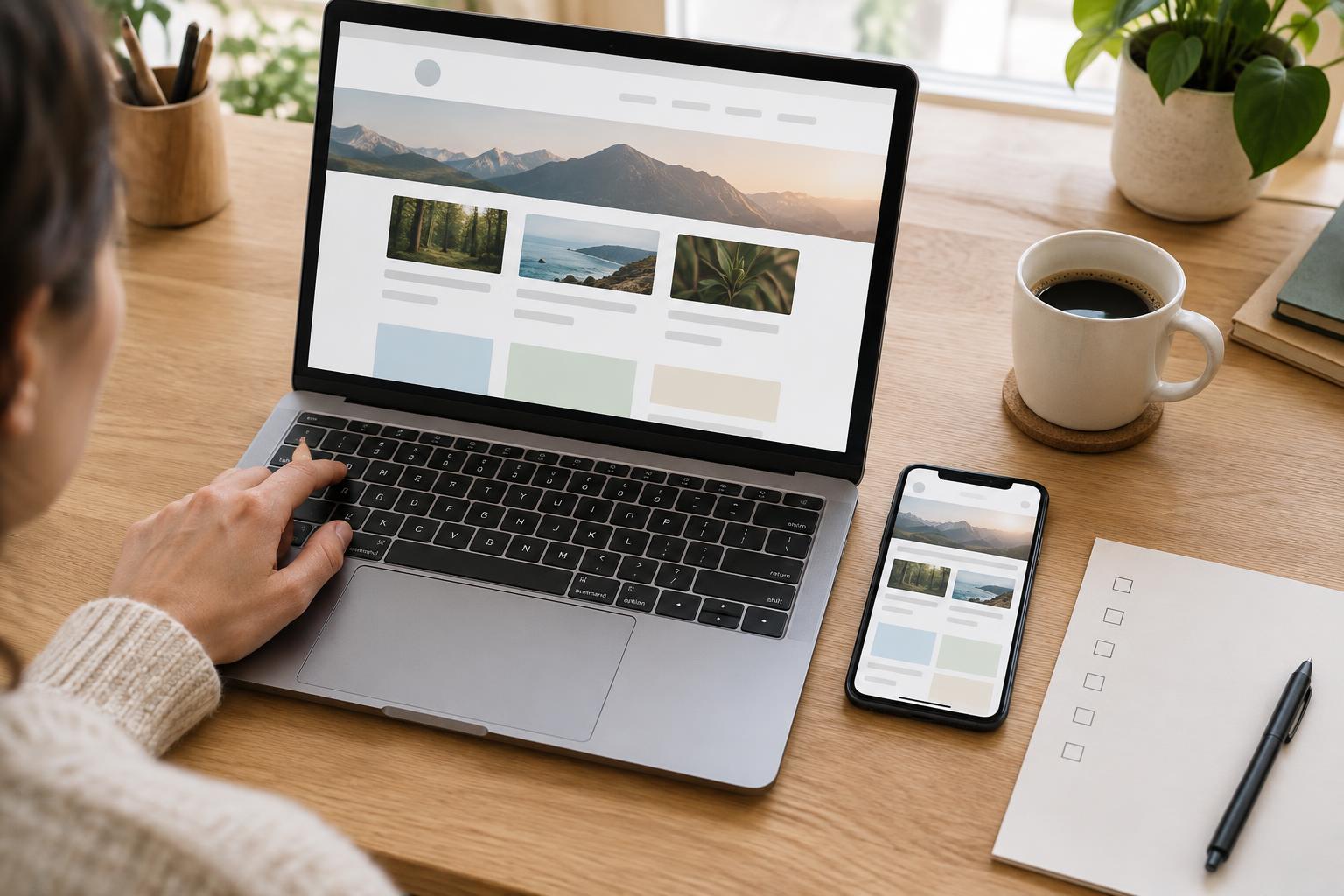
Start with the experience you are handing over
Accessibility is easier to address while a project can still be changed. Before handoff, set aside time to use the finished page, prototype or document as someone encountering it for the first time. The goal is not to declare it accessible after one inspection. It is to catch barriers, fix what you can and make any remaining work visible to the recipient.
List the main tasks the project supports: finding information, submitting a form, following a link or completing a purchase, for example. Choose at least one representative path through each important task. Check the actual deliverable where possible, rather than relying only on design files. A static mockup can show intended colors and labels, but it cannot prove that a menu works with a keyboard or that an error message is announced.
Check structure, words and images
Read through the page without relying on its layout. Does the title explain where you are? Do headings describe the sections beneath them and follow a sensible order? Are link labels meaningful out of context? Replacing several links labeled “Learn more” with labels that name their destinations can make a page easier to scan and navigate.
Review each meaningful image and ask what someone would miss if it were not visible. Its text alternative should convey that information, not repeat nearby text or describe every visual detail. Decorative images generally should not interrupt the reading experience. For charts or diagrams, make sure the essential takeaway is also available in text. If your project includes video or audio, check that necessary spoken information and meaningful sounds have an appropriate text-based alternative, such as captions or a transcript.
If you can inspect the built page, confirm that headings, lists, buttons and links use elements that match their purpose. Text styled to look like a heading is not necessarily a heading in the page structure. Likewise, a clickable shape may look like a button without behaving like one. Flag mismatches for the person who can change the implementation.
Try the project without a mouse
Put the mouse aside and move through the experience with the keyboard. Use Tab to advance, Shift+Tab to move back, and Enter or Space to activate controls where appropriate. Can you see which item has focus? Does focus move in an order that makes sense? Try opening and closing menus, dialogs and other interactive elements. You should be able to reach the main tasks without getting trapped.
Test forms from start to finish. Every field needs a clear label, and required fields should be identified in a way that does not depend on color alone. Submit an incomplete form to see whether the errors explain what needs fixing and are easy to find. If the page changes after an action, such as displaying a success message, check that the result is noticeable without having to search for it.
A keyboard pass is useful, but it is not the same as a full assistive-technology test. If the team has access to a screen reader and knows how to use it, a short pass through the main tasks may reveal issues that visual inspection missed. Record what you tested and what you did not; do not treat an unfamiliar tool as proof that everything works.
Review readability at different sizes
Check that text is easy to distinguish from its background, including smaller labels, placeholder text and button states. An automated contrast checker can help identify color combinations that need attention, but it cannot judge whether the wording itself is clear. Also look for instructions that depend only on color, position or shape, such as “Select the green option.”
Zoom in and try a narrow viewport. Can you still read the content without text being cut off? Do controls remain usable when text wraps? Pay special attention to navigation, tables, dialogs and long form labels. If you find a problem, note the screen size or zoom setting and the steps that reproduce it. That detail makes the issue easier to fix than a general comment that the mobile layout is broken.
Make accessibility part of the handoff
Run any available automated checks, then review their findings rather than copying a pass or fail result into the handoff. Automated tools can identify some problems, such as missing labels, but they cannot tell whether an image description is useful or whether an interaction makes sense. Keep a short checklist of the manual paths you tested alongside tool results.
For each unresolved issue, record where it appears, how to reproduce it, what happens and what you expected instead. Include a screenshot when it helps, but describe the issue in words too. Separate barriers to a main task from smaller improvements so the recipient can plan the next round of work. For example: “In the contact form, the error text appears after submission, but keyboard focus stays on the submit button. Review how users are directed to the errors.”
End with a concise handoff note: what was checked, what was fixed, what remains open and who owns the next step. For a freelancer, student or small team, this record is more useful than an unsupported claim that the project is fully accessible. It gives the next person a clear starting point and makes accessibility an ongoing part of delivery rather than a last-minute checkbox.